1. Overview & requirements
WP Manga Translators adds a public Translator Group content type for scanlation and translation teams on sites that already use WP-Manga and a compatible theme, such as Madara, Webtoons, or child themes.
The plugin is designed to work alongside WP-Manga. It does not require modifying WP-Manga core files.
- Translator Group post type:
wp-manga-team. - Default public URL slug:
team. - Teams have a single page and an archive; the default patterns are
/team/group-name/and/team/. - Teams listing cards, search, sorting, pagination, and single-team views use theme-overridable templates.
2. Initial setup
- Install and activate WP-Manga.
- Install and activate WP Manga Translators.
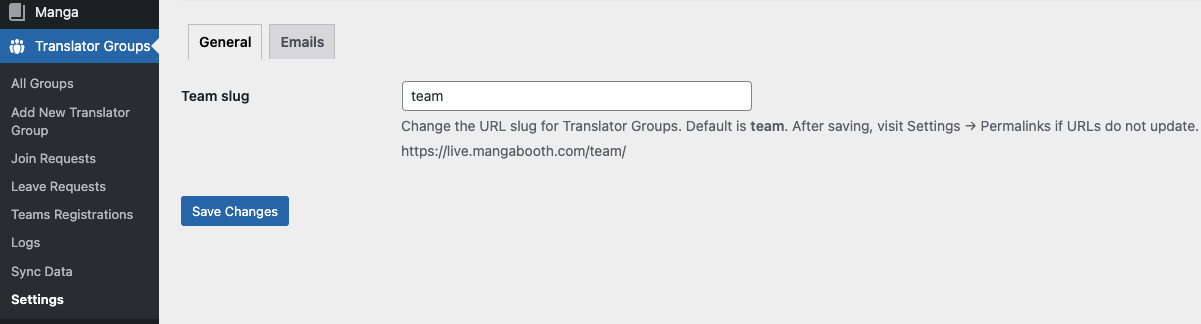
- In WordPress administration, open Translator Groups → Settings.
- On the General tab, set the Team slug if you want a URL prefix other than
team. The slug is sanitized when saved and rewrite rules are flushed. - Optionally configure registration email notifications in the Emails tab.
- Create or publish Translator Groups, then add the listing shortcode to a page where visitors should browse teams.
3. Create and edit teams
Creating a team directly
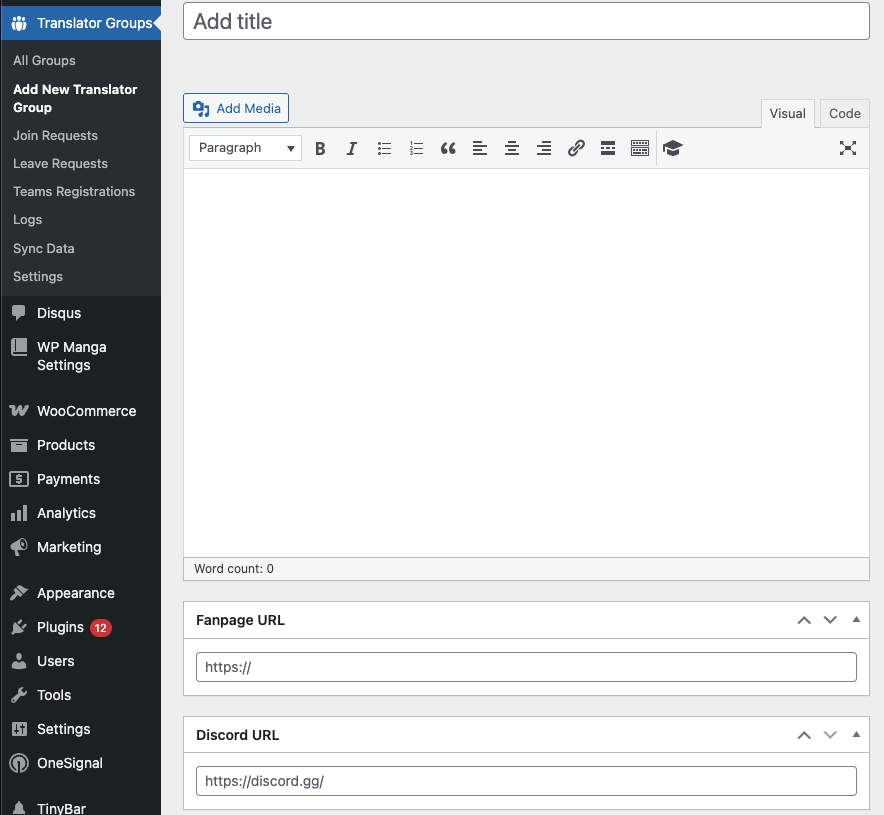
An administrator can add, edit, and trash Translator Groups from the dedicated top-level Translator Groups menu. The post supports a title, editor content, and featured image.
The featured image is used as the team's avatar. Administrators can set a separate cover banner using the team cover metabox. Missing avatar or banner images are represented by a CSS gradient fallback.
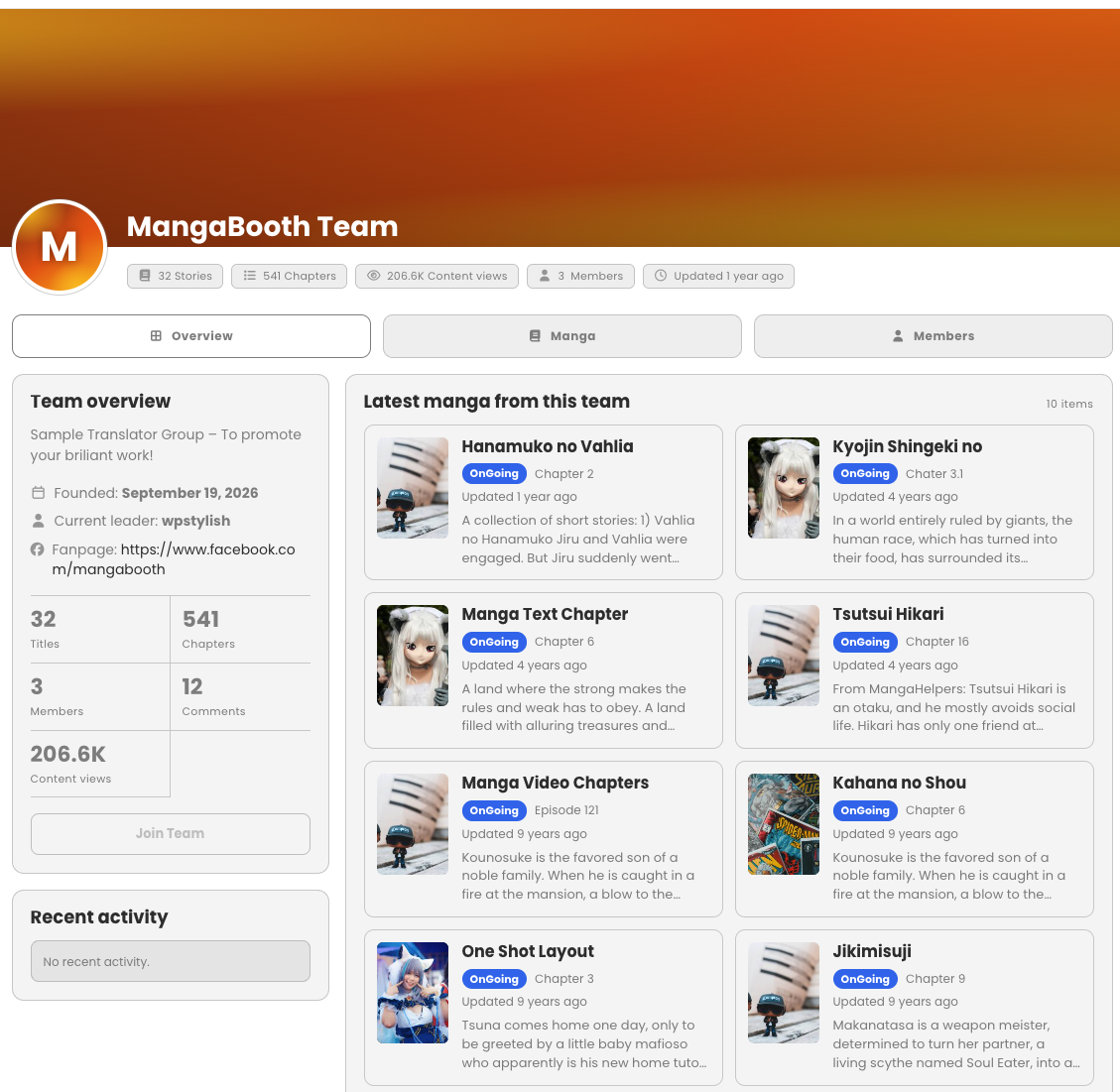
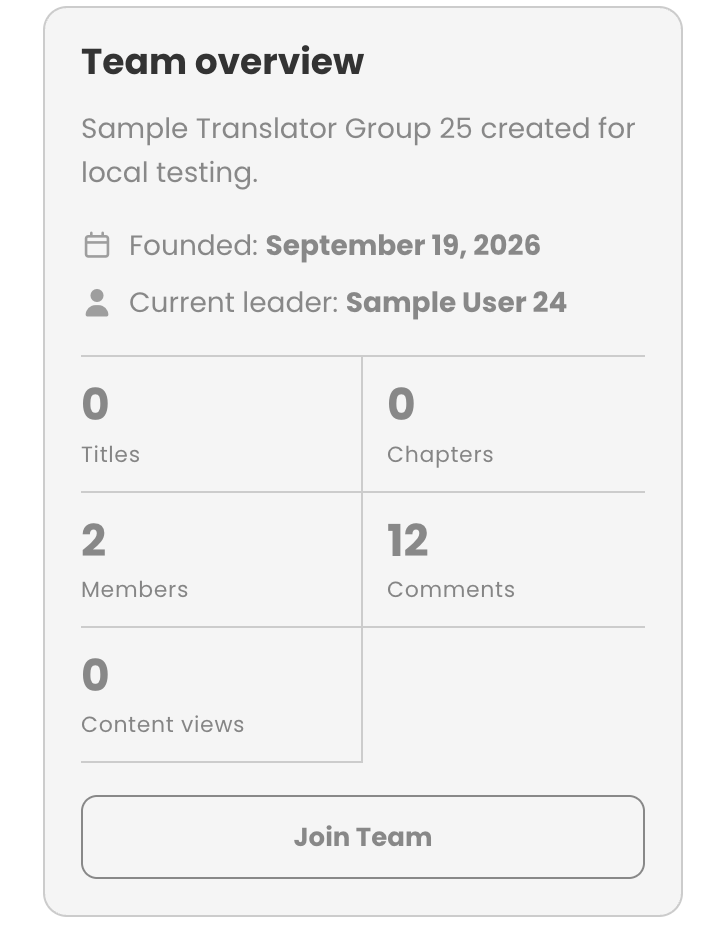
Team information shown on the detail page
- Team name, avatar, and cover banner.
- Description from the post content.
- Founded date from the post creation date.
- Leader from the post creator's display name.
- Fanpage and Discord links, when configured; each link row is hidden when empty.
- Team stats, manga lists, member list, and recent activity.
Creator profile editing
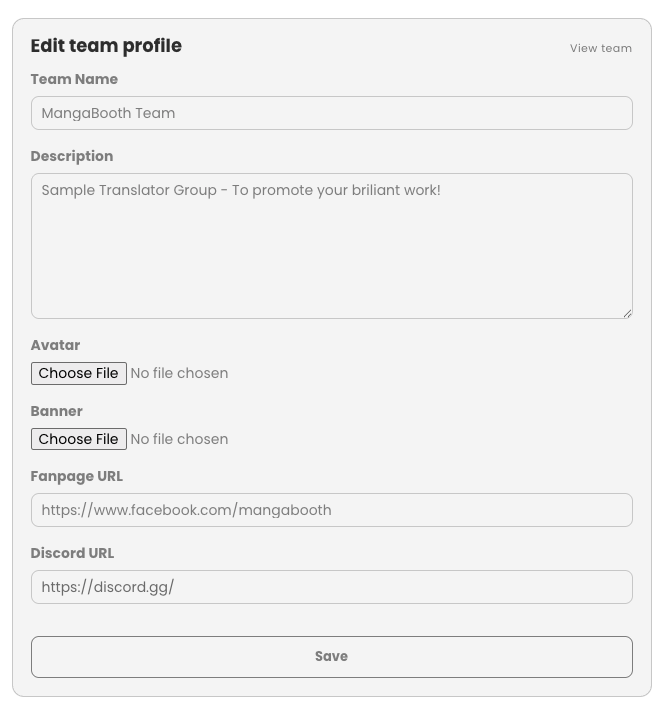
The team creator sees an Edit link instead of the Join Team control. The front-end …/edit-profile/ page is restricted to the creator and allows editing the team name, description, avatar, banner, Fanpage URL, and Discord URL. Non-creators do not receive this edit control.
4. Registering a team
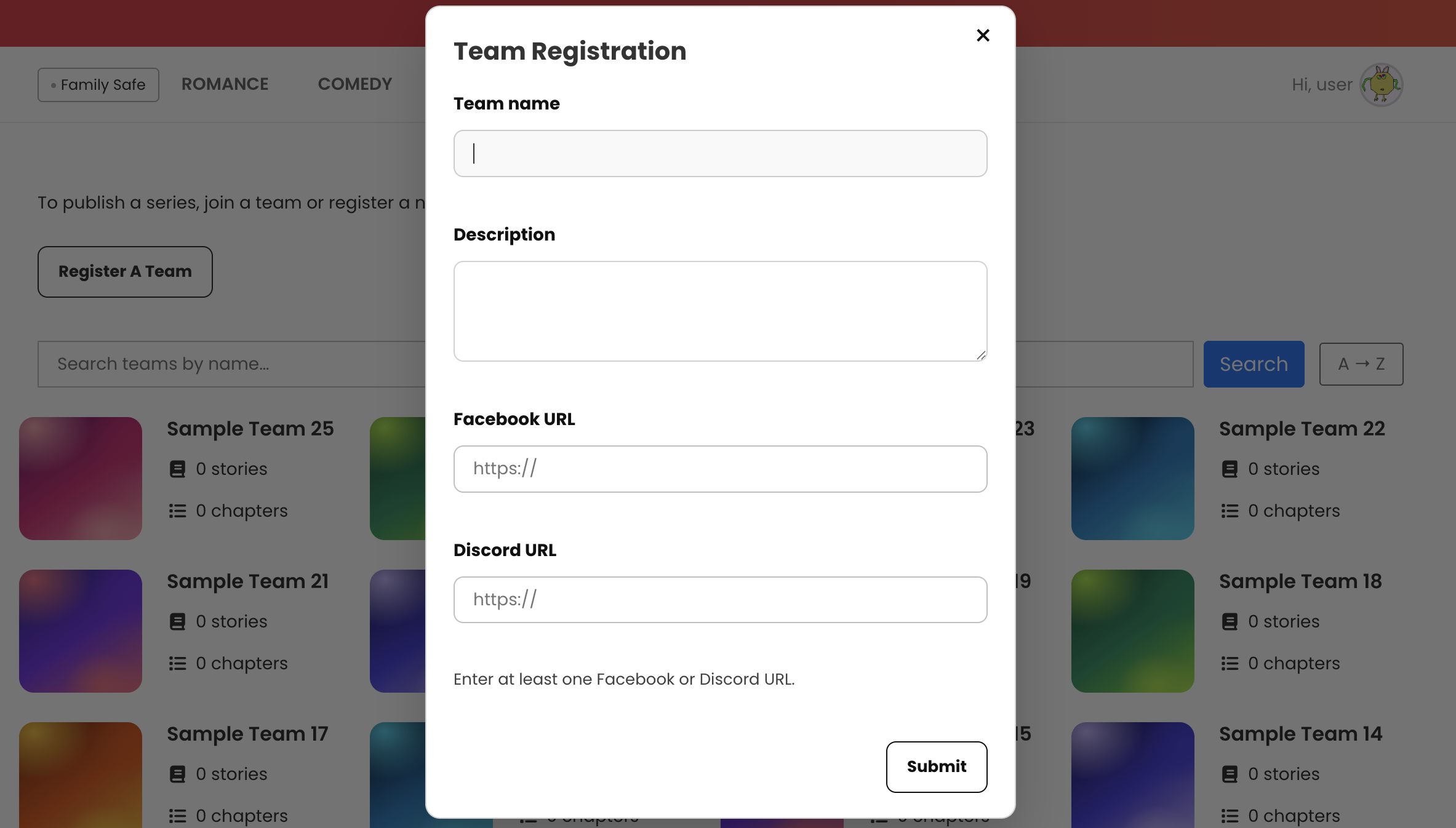
Place [manga_register_team] on a page to display the Register A Team button.
- A logged-out visitor sees a disabled button.
- A logged-in user who already belongs to a team (as member or leader) does not see the button.
- Eligible users open a popup form and provide Team Name, Description, Facebook URL, and Discord URL.
- At least one of the two URLs is required.
- Submitting creates a pending registration request, not a team. A user can have only one pending registration.
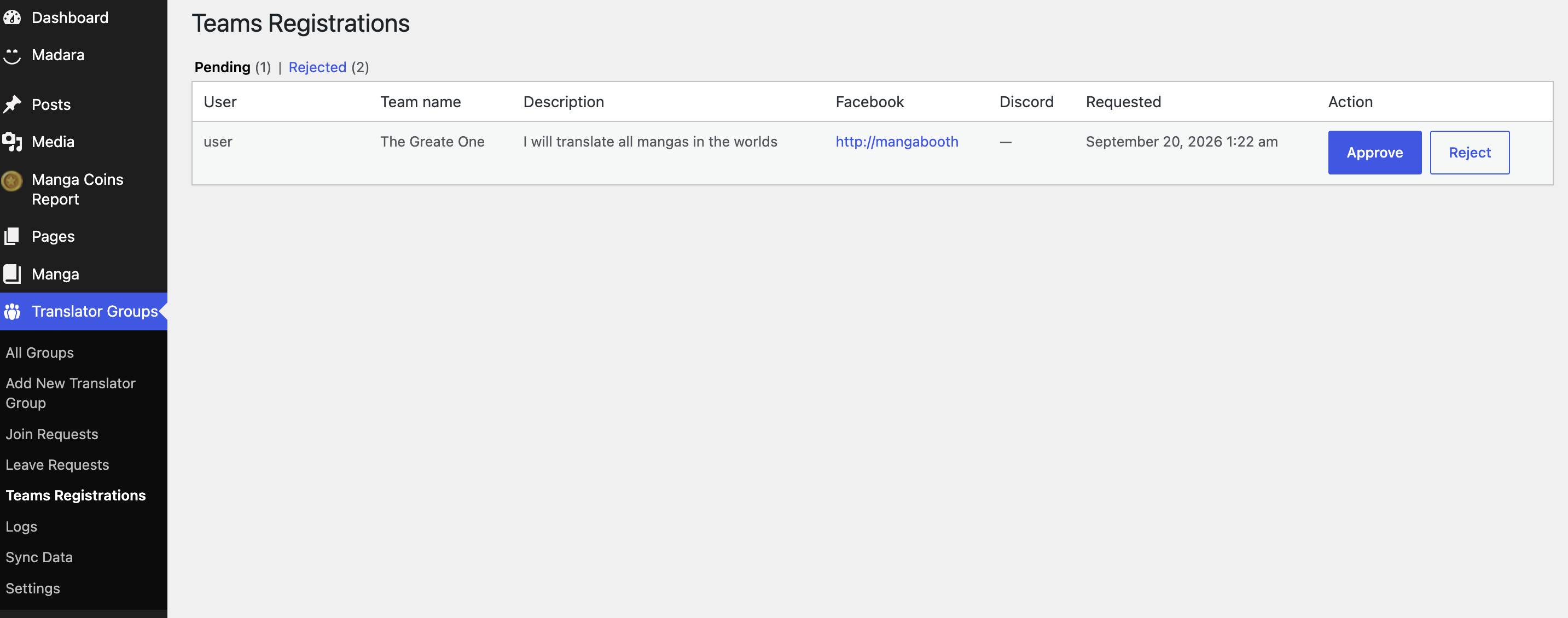
- An administrator reviews requests under Translator Groups → Teams Registrations and approves or rejects them.
- Approval creates the Translator Group with the requester as its leader. Rejected requests remain available in the Rejected view.
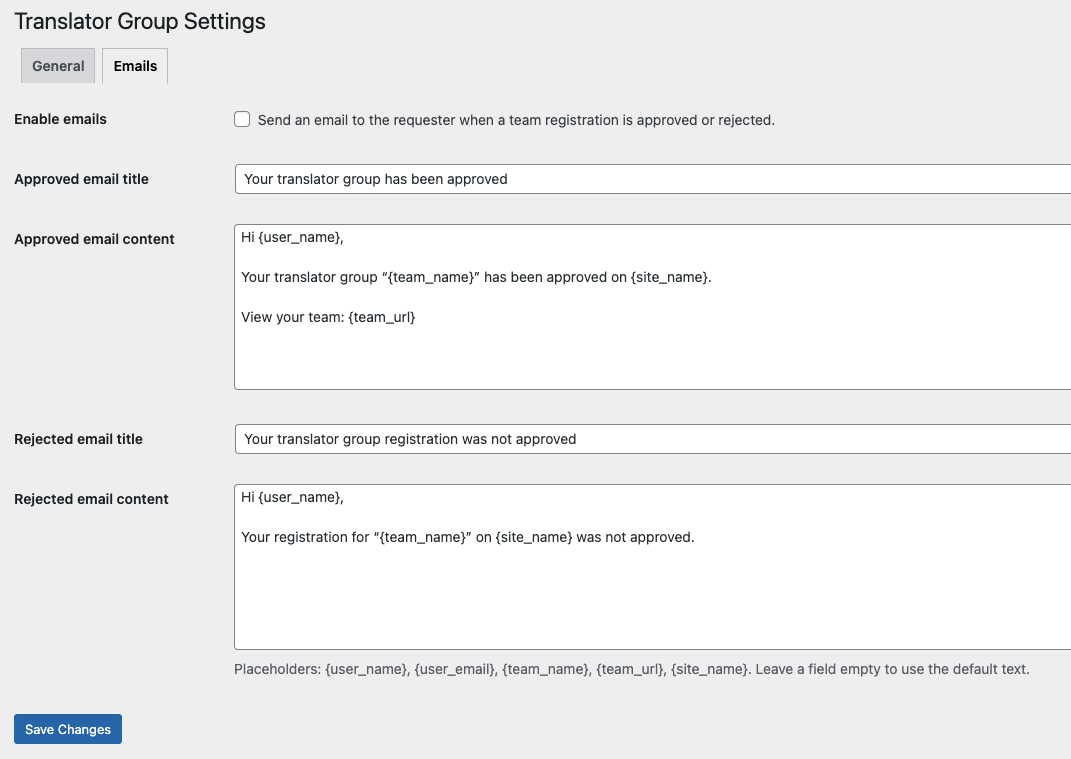
If emails are enabled, the requester receives an email when the registration is approved or rejected. Administrators can configure the enable option and approved/rejected email titles and content in Settings → Emails.
5. Membership workflow
Joining a team
- Logged-out visitors see a disabled Join Team button.
- Logged-in non-members can submit a join request.
- Duplicate requests are ignored.
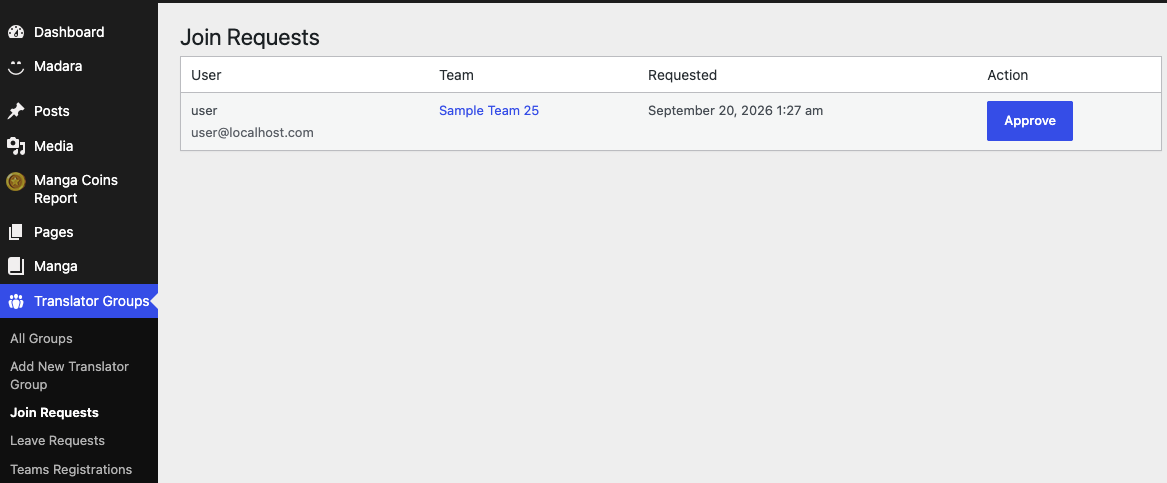
- Administrators can review and approve requests under Translator Groups → Join Requests.
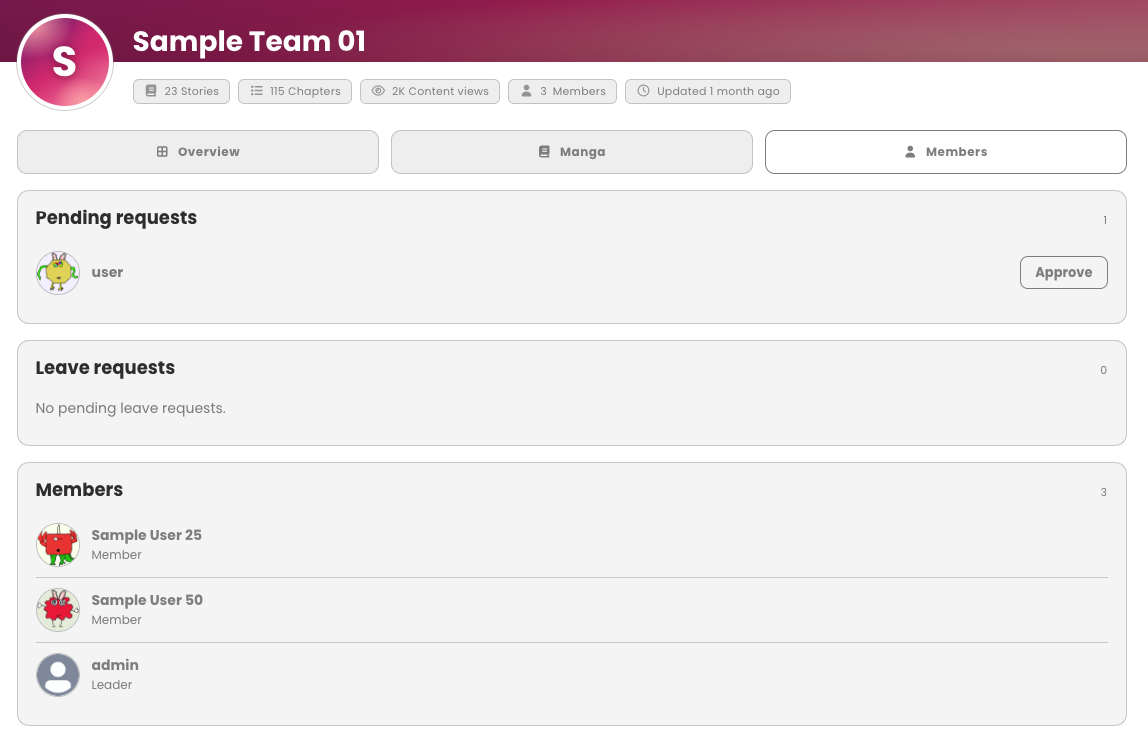
- The team creator can approve pending requests from the Members tab. Other users cannot see pending requests there.
One-team rule
A user may belong to only one Translator Group at a time, whether as a member or leader. Joining is blocked if the user already belongs to a team or has a pending join request elsewhere. Approval is also blocked if the user joined another team after submitting the request. Join controls are hidden on other teams while the user already belongs to a team.
Leaving a team
- A non-leader member can request to leave but remains a member until a leader or administrator completes the removal.
- The member can cancel a pending leave request; the control toggles between Leave Team? and Cancel Leave?.
- The team leader can remove the member from the Members tab, including from the pending-leave list.
- An administrator can process removals under Translator Groups → Leave Requests.
- The team creator cannot leave their own team.
- After removal, the user is free to join another team.
6. Manga association & synchronization
The plugin associates manga with teams based on the manga author's team membership.
Administrator Sync Data action
- Open Translator Groups → Sync Data.
- Run the synchronization. It processes published manga in AJAX batches of 50 until all published manga have been handled.
- For each manga, if its author belongs to a team as a member or leader, the manga receives the team association metadata.
- If the author is linked to more than one team, the manga is associated with each applicable team.
- The synchronization recalculates and stores team story, chapter, content-view, and member statistics.
WP_MANGA::get_instance()->mangabooth_manga_query() method. The plugin plan specifies using this existing query rather than introducing a separate custom manga-query function.Automatic updates
After initial synchronization, supported events update data as activity occurs:
- When a team member publishes a manga, it is associated with their team and story/chapter metadata is updated.
- When a chapter is inserted for a manga owned by a team member, the team's chapter and story metadata is updated.
- When a team manga receives a view, the team's Content views total is updated.
7. Shortcodes
[manga_teams] — list Translator Groups
Displays published teams with a name search, A–Z sort toggle, and pagination. Search, sorting, and page state are represented in GET query parameters, so the resulting URL can be shared.
| Attribute | Default | Behavior |
|---|---|---|
per_page | 12 | Number of teams per page. |
orderby | date | Initial query ordering when A–Z is off; supported values described in the plan are date or title. |
order | DESC | Initial ordering direction when A–Z is off. |
top | Unset | Limits the number of teams shown. When set, pagination is not displayed. |
sort | Theme/query default | Ordering mode: az (title A–Z), mostviews (Content views), mostitems (number of manga/titles), or latest (newest first). |
columns | 4 | Number of team cards per row on desktop. |
Examples:
[manga_teams]
[manga_teams per_page="18" columns="3"]
[manga_teams top="5"]
[manga_teams sort="mostviews" top="10"]
[manga_teams sort="az" columns="3"]
| GET parameter | Purpose |
|---|---|
team_search | Search teams by name/title. |
team_az | 1 enables title ascending order; omitted/empty uses the shortcode's default order. |
team_paged | Team listing page number. This is separate from WP-Manga's manga-paged. |
[manga_register_team] — request a new team
Displays the Register A Team control and registration popup for eligible logged-in users. The request must be approved by an administrator before the team is created.
8. Counts, manga lists & activity
- Stories: number of manga associated with the team.
- Chapters: team chapter count, recalculated during sync and updated on supported chapter events.
- Content views: combined team manga view total; this replaces separate comic-view and novel-view counters in the team stats.
- Members: current membership count. The team creator is always treated as a member.
The Overview's Latest Manga section displays up to 10 manga. The Manga tab lists the team's manga with pagination using team_manga_paged. Both views use two items per row, changing to one column below 576px. Each manga row can show its latest chapter using WP-Manga's latest-chapters function.
Recent activity displays the latest 10 team events, including a member publishing a manga or chapter. Activity records include team, user, manga, chapter, action, titles, and timestamp. Manga titles may link to the manga. Chapter titles can contain HTML.
On a manga detail page, a Translator Team property lists linked published teams. The property is hidden when the manga has no team association.
9. Role capabilities at a glance
| Role | Available actions |
|---|---|
| Visitor / logged out | Browse public team pages and listings. Join and register controls are disabled when shown. |
| Logged-in user without a team | Request to join a team; cancel their own pending join request; submit one pending team registration. |
| Team member | View team membership and team manga; request to leave; cancel their own pending leave; use the user-menu Your team link. |
| Team leader / creator | All member-level team access; edit the team's profile; approve join requests; remove members. The creator is always a member and cannot leave their own team. |
| Administrator | Manage Translator Group posts and settings; approve join requests and registrations; reject registrations; process leave requests; assign/remove members from user edit screens; run Sync Data; inspect membership logs. |
Membership logs and admin assignment
On a WordPress user edit screen, an administrator can assign a user to a Translator Group or remove them, subject to the one-team rule. Existing membership is displayed. A member cannot be removed this way if they are the team leader. Administrators can add a note to assignment/removal actions.
The Translator Groups → Logs screen records join requested/approved and leave requested/approved events, including who, team, actor where applicable, and time. Admin assignment/removal is also logged with its note.
10. Theme compatibility & customization
- Template lookup order: child theme, then parent theme, then plugin templates.
- Theme override directory:
wp-manga-translators/. - Plugin fallback templates live in
templates/. - Frontend markup reuses Madara/WP-Manga class names where available so compatible themes can apply existing styling.
- Public extension hooks and filters use the
wp_manga_translators_prefix. - Interface labels on the team detail page are English strings prepared for translation using the
wp-manga-translatorstext domain.
11. Scope notes
The following capabilities are not included in the described feature set:
- Chapter-level team attribution.
- Additional team social links or a team website beyond the specified Facebook/Fanpage and Discord URLs.
- A separate team archive dedicated to listing that team's manga beyond the specified team detail Manga tab.
- Extra widgets, Elementor integration, or additional REST features.
- Automatic copying of plugin templates into Madara or Webtoons theme directories.